SSH Tunnels Overview
Many databases are not reachable from the public internet. Harlequin’s and hsql’s integration with SSH can make connecting to such databases easier.
About SSH
SSH, or Secure Shell, is a protocol for connecting to and remotely controlling a server. Sometimes these remote servers are set up solely to provide access to a private network; such a server is often called a bastion, or a jump box. Developers SSH into the bastion to gain access to the other resources on the private network with it.
An SSH tunnel is an encrypted connection where the bastion transparently forwards connections to other servers or databases on that network. With an SSH tunnel established, programs running on your computer — such as a database client like Harlequin — can connect to resources that only the bastion can reach.
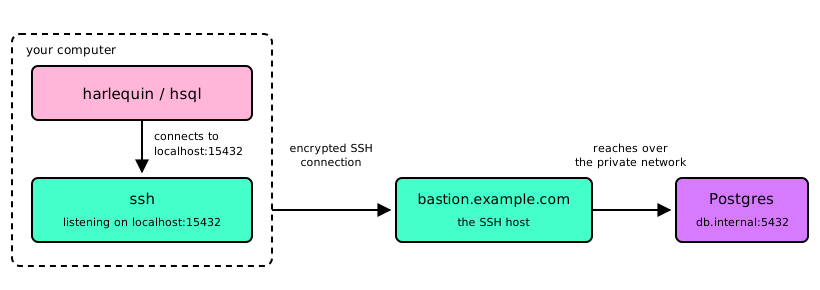
In this example, ssh listens on localhost:15432 and forwards any connection on that port to the remote Postgres that the bastion (or server) can reach at db.internal:5432. This is considered a “tunnel.” A tunnel can be configured for a specific Host with a LocalForward key in your ~/.ssh/config:
Host db_prod
  HostName bastion.example.com
  User my_ssh_username
  LocalForward 15432 db.internal:5432
User is your username on the SSH host; the database has its own user, which you give to Harlequin with your other connection details.
Harlequin runs on your local machine, so it should then be configured to connect to the local end of the tunnel, open at localhost:15432:
$ harlequin -a postgres --host localhost --port 15432 --dbname analytics --ssh-host db_prodPrerequisites (Dependencies)
This feature requires an ssh client on your PATH. An OpenSSH client ships with macOS, Linux, and Windows 10 and later, so you most likely already have one installed. Harlequin uses the SSH client already installed and configured on your computer, so your whole ~/.ssh/config applies: Host aliases, LocalForward, ProxyJump, identity files, certificates, your agent, and Match blocks all behave exactly as they do when you run ssh yourself.
hsql --info reports the ssh client that it uses:
$ hsql --info | jq '.ssh'{
"client": "/usr/bin/ssh",
"version": "OpenSSH_9.6p1, LibreSSL 3.3.6"
}Recommended Configuration
Define a Host that configures a LocalForward in your ~/.ssh/config, like the one above. Then create a profile that names the SSH Host and sets the other database connection options:
[profiles.prod]
adapter = "postgres"
host = "localhost"
port = 15432
dbname = "analytics"
user = "my_db_username"
ssh_host = "db_prod"
harlequin -P prod and hsql -P prod then open the tunnel and connect through it.
What Happens When You Connect
- When you run Harlequin or hsql with an
--ssh-hostoption, it will attempt to establish the SSH tunnel before starting.sshmay prompt you for a password, 2FA, etc. (Pass--ssh-batch-modeto fail instead of prompting.) - If the tunnel is opened successfully, Harlequin will attempt to connect to your database through the tunnel. If it succeeds, you will be shown a notification that the tunnel is open and the database is connected.
- Harlequin keeps the SSH connection alive, and will attempt to reconnect if it fails.
- When you quit Harlequin, it closes the tunnel during shutdown.